Week 10: Putting it Together
- Nov 18, 2019
- 2 min read
This past week we assembled the new PC system. Pictures of all the components as well as the full build can be seen below.
Our plan was to connect all components onto the motherboard, minus the GPU, before placing it into the chassis. Once in the chassis, the power supply and SSD are installed, then all the necessary connections were made and the GPU connected. The following breaks down our process in detail.
The first step in assembling the PC was installing the CPU into the motherboard socket. We then placed the RAM into their respective slots and then installed the Noctua CPU cooler onto the board. Afterward, we placed the board into the chassis and verified that each standoff was screwed into. The CPU and case fan headers were plugged in as well. The power supply, optical drive, and SSD were then installed in the case. We then routed power to the motherboard and CPU, the SSD, and then the optical drive. The front panel I/O ports were then wired accordingly to the motherboard. Finally, the GPU was installed in the second PCIe port on the motherboard. We performed some light cable management to ensure no slack in wiring obstructed airflow or potentially interfered with fans within the system. We then tested that the system turned on fully and then proceeded to install the operating system.
The contents of the old PC’s hard drive was cloned onto the SSD we used for the new PC. This was done in order to make sure every program and project we needed was on the new computer. However, the old computer ran Windows 7 which is not officially supported by modern motherboards. The computer was able to boot up Windows 7, but all the USB ports were disabled due to not having supporting drivers. This let us to needing to upgrade the OS to Windows 10. We wanted to refrain from doing this in case any of the programs used before would have its functionality compromised. In our experience, upgrading to Windows 10 can have this effect.
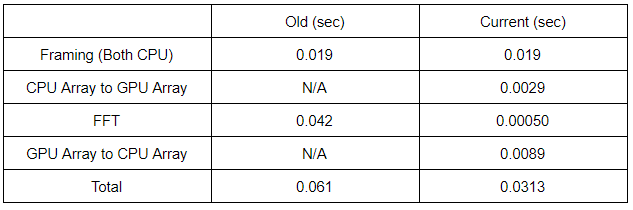
The plan next week is to run the system on the new PC and see what improvements we get. In addition, we will see if we hit our theoretical fps ceiling to not only determine if our calculations were correct, but to see which part of the system is creating this ceiling. Our assumption is that the PC was capping the frame rate at 4 fps, so we should be seeing an increase.


Comments